Pastors and admins
If you run a church on Propag8it, you are an admin. Everything in this guide happens on the website. On the phone, one button opens it for you: tap the gear at the top right of Home, tap Join or leave a church, then tap Open church space. It opens the website in your browser, so sign in there if it asks. Group leaders and mentors have their own guide, and the how-tos you share with them are linked from here.
Accept your admin link
Someone sends you a link. Open it, accept, and you're an admin.
On the website
- 1Open the link you were sent. It names your church and says what you'll see as its admin: members' names, groups, meeting attendance and pathway steps, and totals for your Friends Sunday. Never anyone's souls, prayers or notes.
- 2Signed out? Click Create an account if you're new, or Sign in if you have an account. If we ask you to confirm your email, open the link we send. Then open your admin link again. The page says Then open this link again to accept.
- 3Signed in, the page shows the email you're signed in as. Wrong account? Click Not you? Sign out.
- 4Click Accept. You land in your church's space.
- 5Already an admin of that church? The page tells you, and Open church space takes you in.
An admin link works once and expires on the date the page shows. If it says This admin link has expired or has already been used. Ask the person who sent it for a new one. ask whoever sent it.
Open your church space
One home for everything your church does. Nine pills along the top get you around.
On the phone
- 1The phone has no admin screens. Tap the gear at the top right of Home, tap Join or leave a church, then tap Open church space. It opens the website in your browser. Sign in there if it asks.
On the website
- 1In the menu, click Church space. It's also in Settings, in the Church section, as Open church space.
- 2Admin of more than one church? A list called Your churches comes first. Pick one.
- 3The pills along the top are the sections: Overview, Care, Pathways, Friends Sunday, Groups, Mentors, Unconnected, Admins and Settings. A number on Care shows how many people are waiting for a call.
- 4The top bar shows a Church tag and your church's logo. Your own dashboard takes you back to your own souls.
Every page repeats the promise: "You see names, groups, attendance and pathway steps — never anyone’s souls, prayers or notes." See What you see, and never see.
Overview and your numbers
How your church is doing, and why the soul figures wait until five members have added one.
On the website
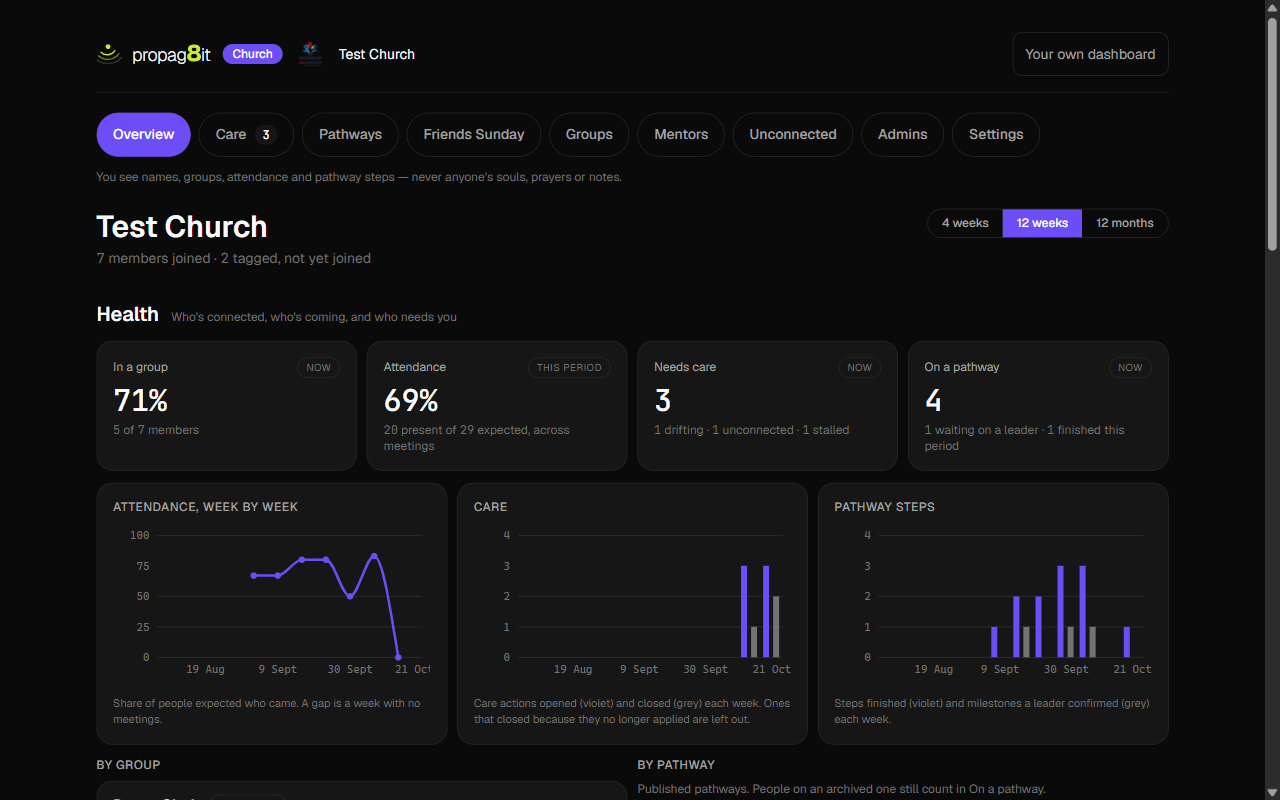
- 1Click Overview. At the top you see your church's name and how many members have joined. If some people are tagged but haven't joined yet, that count is beside it.
- 2Pick the period with 4 weeks, 12 weeks or 12 months. It opens on 12 weeks.
- 3The page has four bands. Health is who's in a group, who's coming and who needs care. Reach is souls reached and won. Discipleship is whether the people won are being walked with. Engagement is how much of the church is taking part.
- 4Soul figures stay hidden until 5 members have each added at least one soul. Until then the page tells you how many have joined and how many of the 5 have added a soul, and says to share your link. This keeps the numbers about a group and not one person.
- 5While the figures wait, Health still shows. It counts things admins already see by name: groups, attendance, care and pathways.
- 6A soul counts as stalled after 30 days with no step and no completed task. Disciple, the 12-week track, gets 14 weeks. In Pace, a step shows once 5 souls have made that move. Someone counts as active in Active members if they did something in the last 30 days. Praying and notes don't count as activity yet.
When a member joins or leaves, the church totals move by their numbers. Members are told this before they join. See What your church sees.
Set up groups
Fellowships and departments, with leaders. Start with the ones your church already runs.
On the website
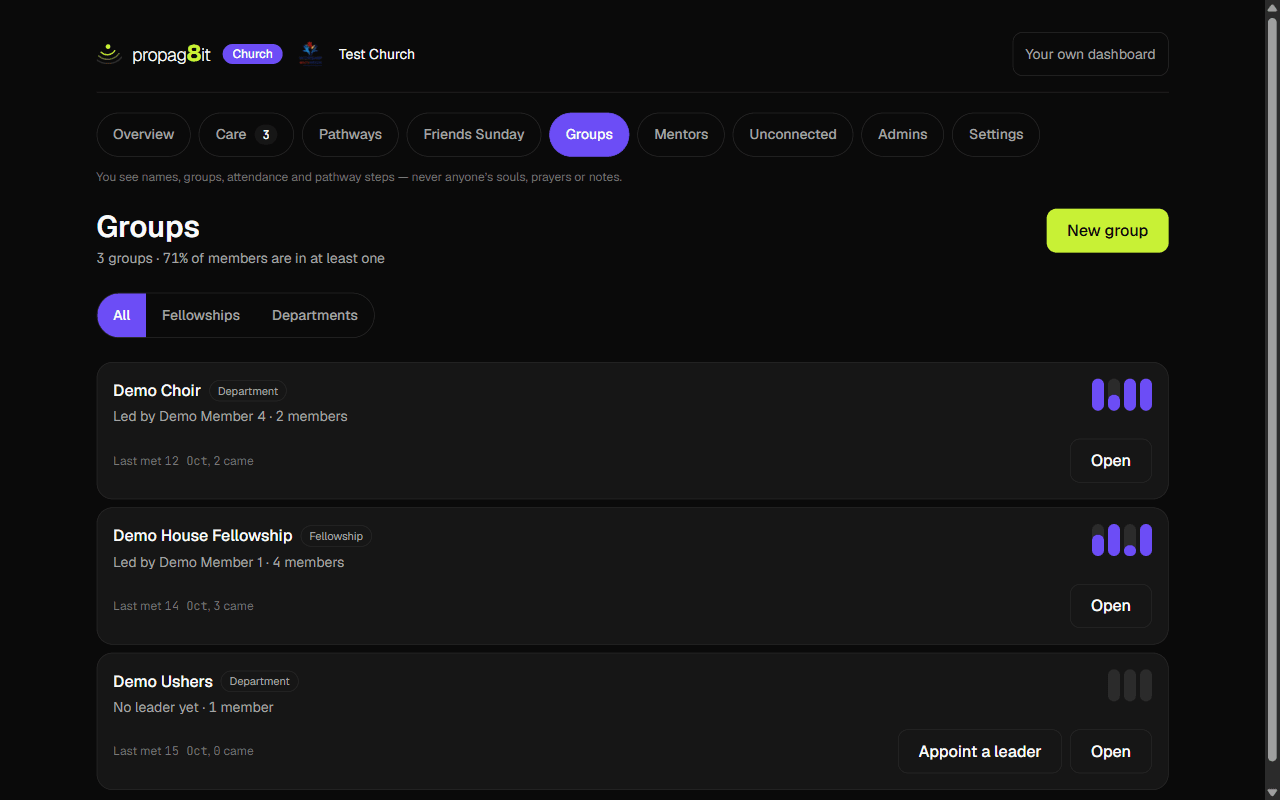
- 1Click Groups. You see each group with its kind, who leads it, how many members it has, and when it last met. Pills filter by kind. All shows every group. Archived groups are behind Active and Archived.
- 2Click New group. Type a Name your church already uses, pick Fellowship (meets to grow together) or Department (serves: the choir, the ushers), and click Create group.
- 3A group with no leader shows Appoint a leader. It takes you to the member list of that group. Click Open on any group to go in.
- 4In the group, add people under Add members: type a name into Search your church and click Add. Only people who have joined your church can be added.
- 5Only admins see Make leader and Make member beside a name. Group leaders can't change who leads. Admins can also click Remove on a leader. Leaders can only remove members.
- 6Under Group settings, change the Name or the kind and click Save changes. Archive group keeps every meeting but stops the group counting toward who's connected. Bring it back undoes it.
- 7Recording attendance and the rest of a leader's day is the same as in the Leaders guide. See Record who came and Add and remove people.
A mentor pair is a group of two, but it isn't listed under Groups. Admins pair people under Pair people to mentor.
Connect people who aren't in a group
Everyone who has joined should belong somewhere. This page lists who doesn't.
On the website
- 1Click Unconnected. It lists members who aren't in any group yet, oldest joiners first, with the month each joined.
- 2On a row, pick a group from Choose a group and click Add to a group.
- 3No groups yet? The page says to create one first and gives you New group.
- 4When everyone has a group, the page says so.
Only admins see this page. Group leaders don't. People who aren't in a group also show up in Care.
Care for the whole church
Who needs a call, across every group. You see more here than a group leader does.
On the website
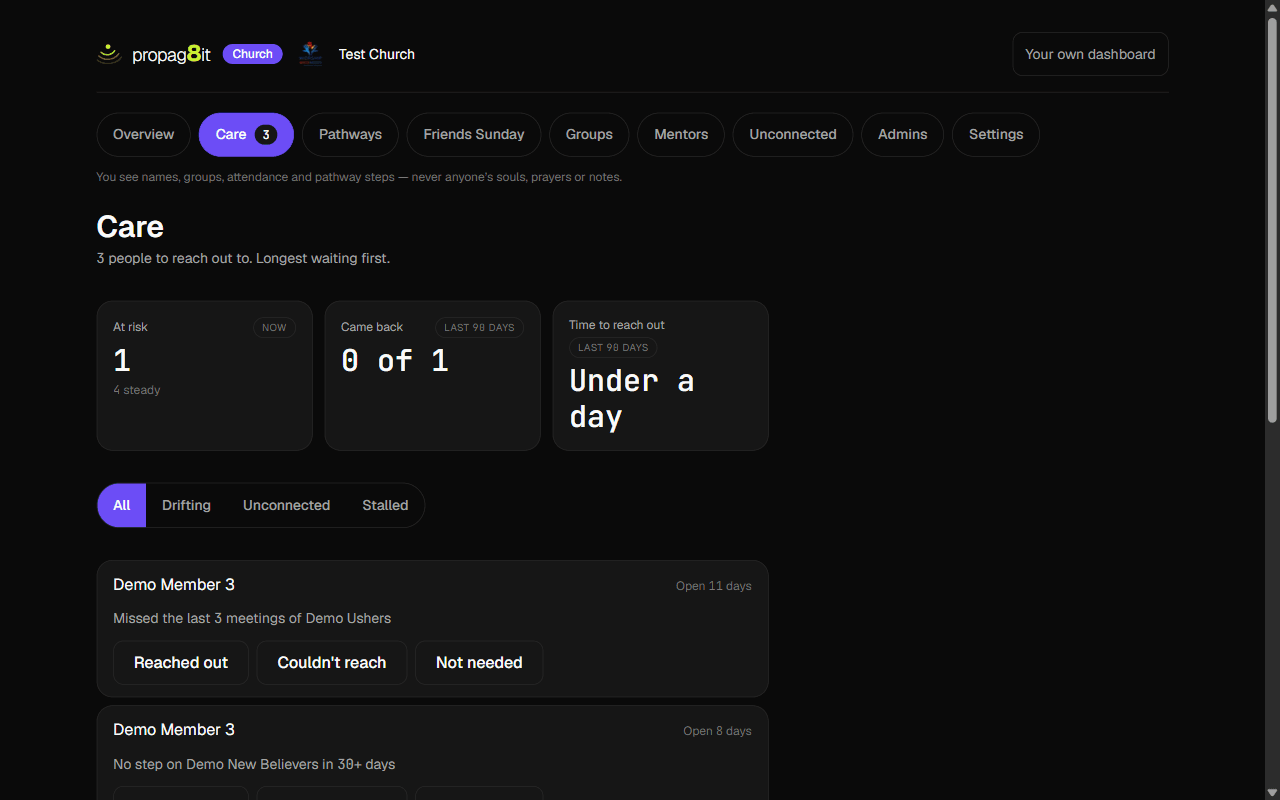
- 1Click Care. It works as it does for leaders: each row is a person, with how long it's been open and why. Make the call yourself, then record how it went. See Reach out to someone.
- 2As an admin you also see people who aren't in any group, which leaders don't. Those rows say they're not in a group yet, with the month they joined, and have the same Choose a group and Add to a group picker as the Unconnected page.
- 3Three figures sit above the list: At risk, Came back and Time to reach out. The last two cover the last 90 days.
- 4Filter with All, Drifting, Unconnected or Stalled. Stalled is someone with no step on their pathway in 30 days or more. Open their pathway takes you to their steps.
- 5Under When to ask, set how many meetings in a row someone misses before they count as drifting. Pick a number from 2 to 6 and click Save. It starts at 3. The page confirms with Saved. Every group has been checked again.
You record that you reached out and how it went, never what was said. As an admin, the phone's Church alerts can nudge you once a day. See Daily care alert.
Build a pathway
Walk people through their next steps. Start from a template or a blank page.
On the website
- 1Click Pathways, then New pathway. Each pathway starts as a draft that only admins can see.
- 2Start from Blank: type a Name, pick a Kind (New believer, Baptism, Membership, Serving or Leadership) and click Create. Or click Use this on a template: New believers, Baptism class or Serving. The template lessons are a starting point for your own teaching.
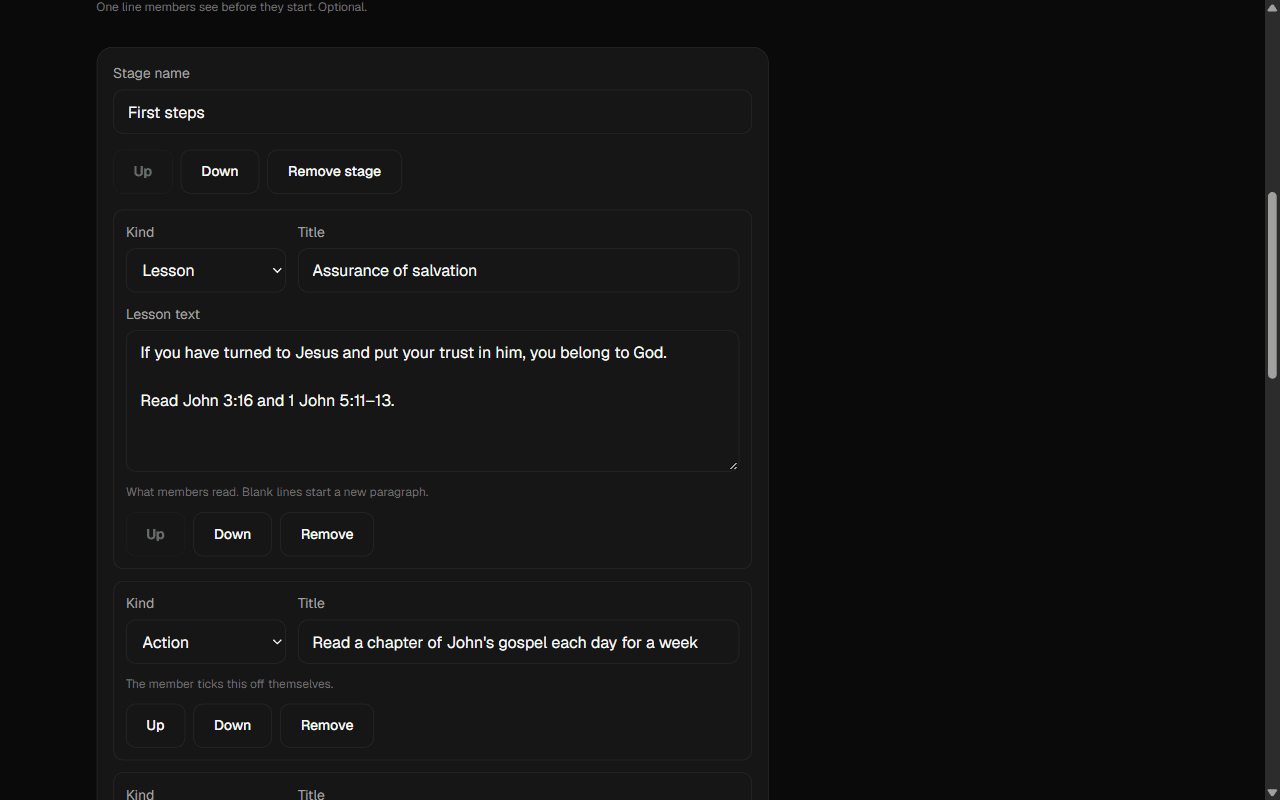
- 3A draft opens on Steps. Set the Name, Kind and a one-line Summary members see before they start.
- 4A pathway is stages, and each stage has steps. Give each stage a Stage name. Click Add a step and pick its Kind: Lesson, Action or Milestone. Give it a Title. A lesson also has Lesson text, and a blank line starts a new paragraph.
- 5A member ticks off lessons and actions themselves. A milestone waits for an admin or one of the member's group leaders to confirm it.
- 6Use Up and Down to reorder. Use Remove or Remove stage to take things out. A pathway can have up to 12 stages and each stage up to 12 steps. Click Add a stage for another stage.
- 7Click Save. The page says Saved.
Changed your mind about a draft? Delete draft removes it, after you confirm. A pathway needs at least one stage before you can publish it.
Publish and archive a pathway
A draft is yours until you publish it. Archive one when you're done with it.
On the website
- 1On the pathway's page, click Publish and confirm. Members of your church can start it straight away.
- 2To retire it, click Archive and confirm. People already on it carry on, but no one new can start it.
- 3Archived pathways are tucked away. Click the link at the bottom of the Pathways page that starts "Show archived" and gives their number. Then click Hide archived to tuck them back. Publish again on an archived pathway brings it back.
- 4The list shows each pathway's kind and its status: Draft, Published or Archived. It also shows its stages, steps, how many people are on it and how many have finished.
You can still edit a published pathway. Removing a step removes the ticks people made on it. Adding one means someone who had finished has one more to do.
Put someone on a pathway, and follow them
Members can start a published pathway themselves. You can also put someone on it.
On the website
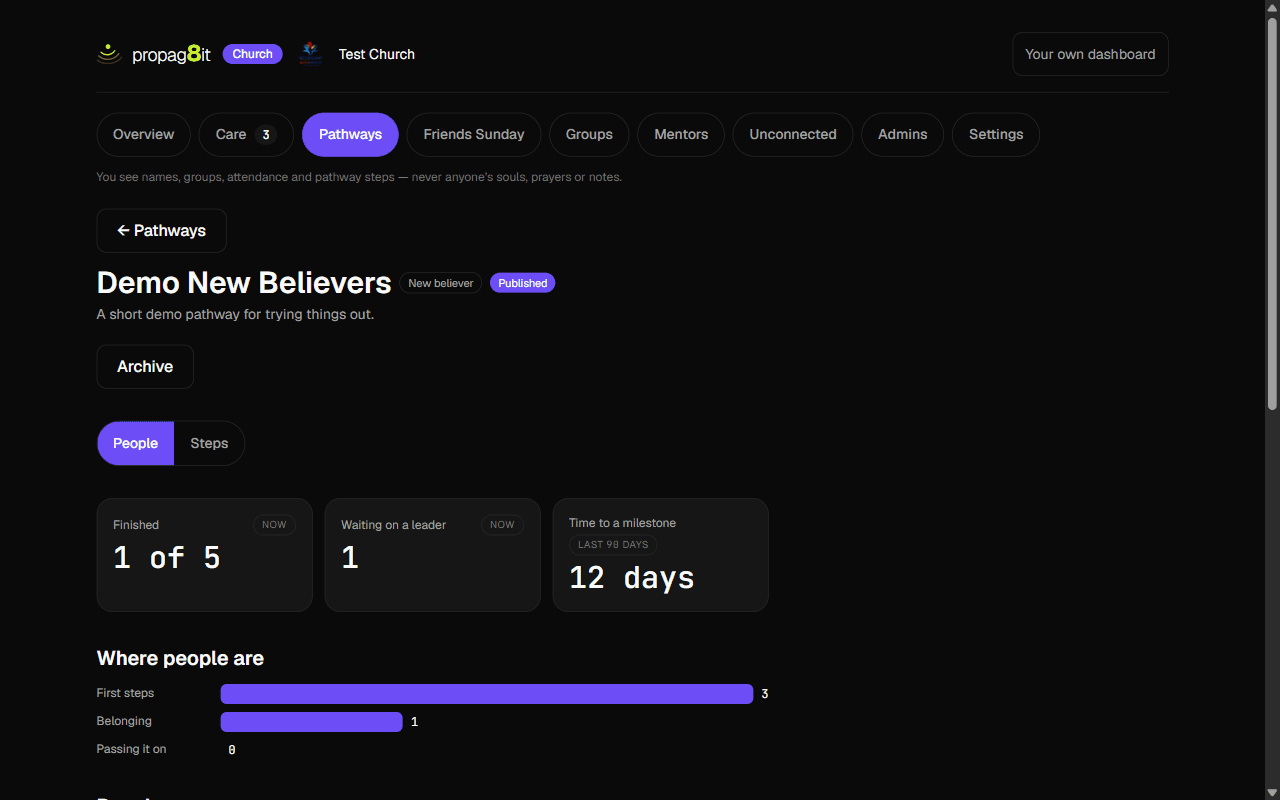
- 1Open a published pathway and click People. Three tiles show Finished, Waiting on a leader and Time to a milestone. Below them you see where people are, one row for each person.
- 2To add someone, go to Put someone on this pathway, type a name into Search your church and click Put on.
- 3Click a person to see their steps. Each is marked as done, confirmed, or not yet. Click Confirm beside a milestone once it has happened, or Undo if it was a mistake.
- 4Only admins see Take off this pathway on that page. After you confirm, the person's ticks on it are deleted.
Members see their side in Pathways. Leaders confirm milestones too. See Confirm a pathway milestone.
Plan a church Friends Sunday
One date the whole church brings guests to. You set it, members join it.
On the website
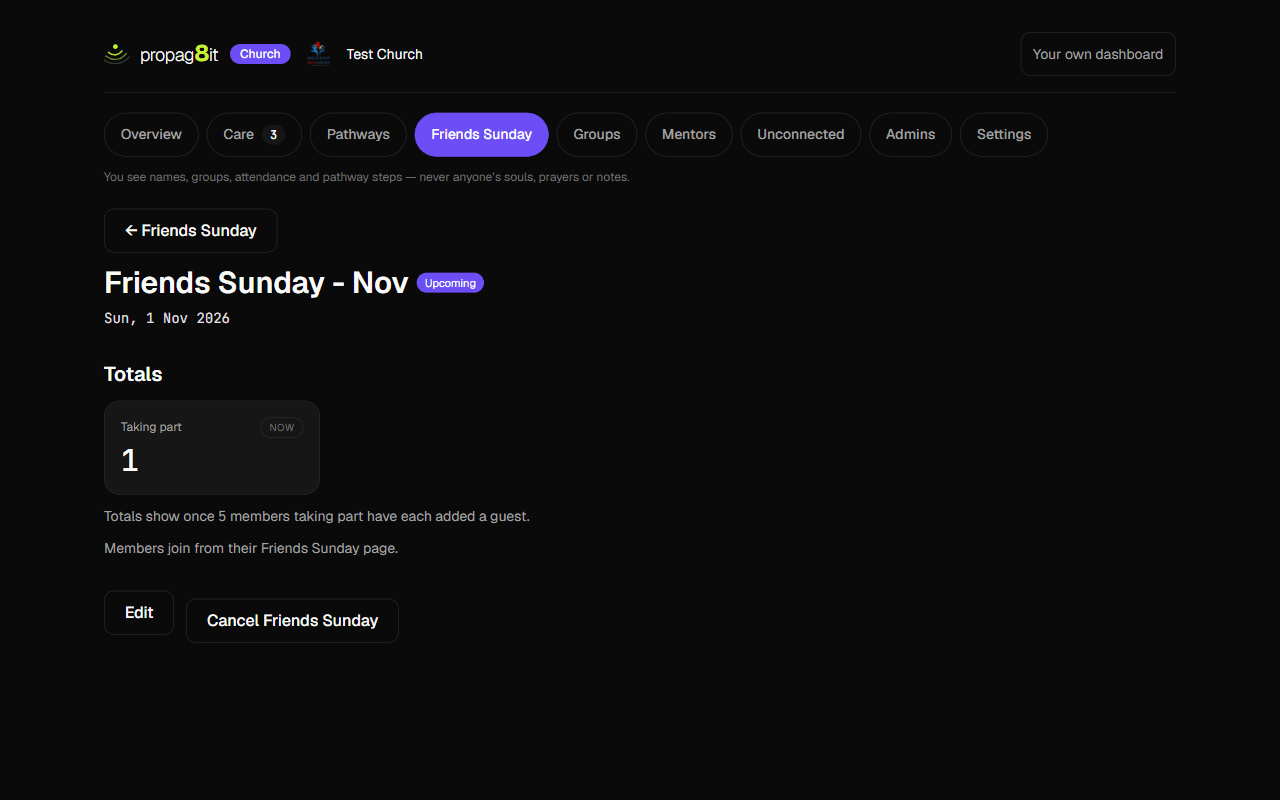
- 1Click Friends Sunday, then New Friends Sunday. The page says it's one date for the whole church, and members join from their own Friends Sunday page.
- 2Fill in the Title (it starts as "Friends Sunday"), the Date, and if you like a Location (optional) and Details (optional). The date can't be in the past. Click Create Friends Sunday.
- 3The list marks each one Upcoming, Past or Cancelled. Click one to open it.
- 4Need to change the date or place? Click Edit, change it and click Save changes. The page says Saved. Members see the change. Click Never mind to leave without saving, or Close once saved.
- 5Called off? Click Cancel Friends Sunday and confirm. Members keep their own events and guests. A cancelled one can't be changed.
- 6Under Totals, Taking part always shows how many members joined. Invited, Said yes, Came and Decided show once 5 members taking part have each added a guest.
You see totals, never a guest's name and never one member's numbers. Members are told this before they join. See Friends Sunday.
Pair people to mentor
Pair a newer believer with a mentor. Nothing is shared until both accept.
On the website
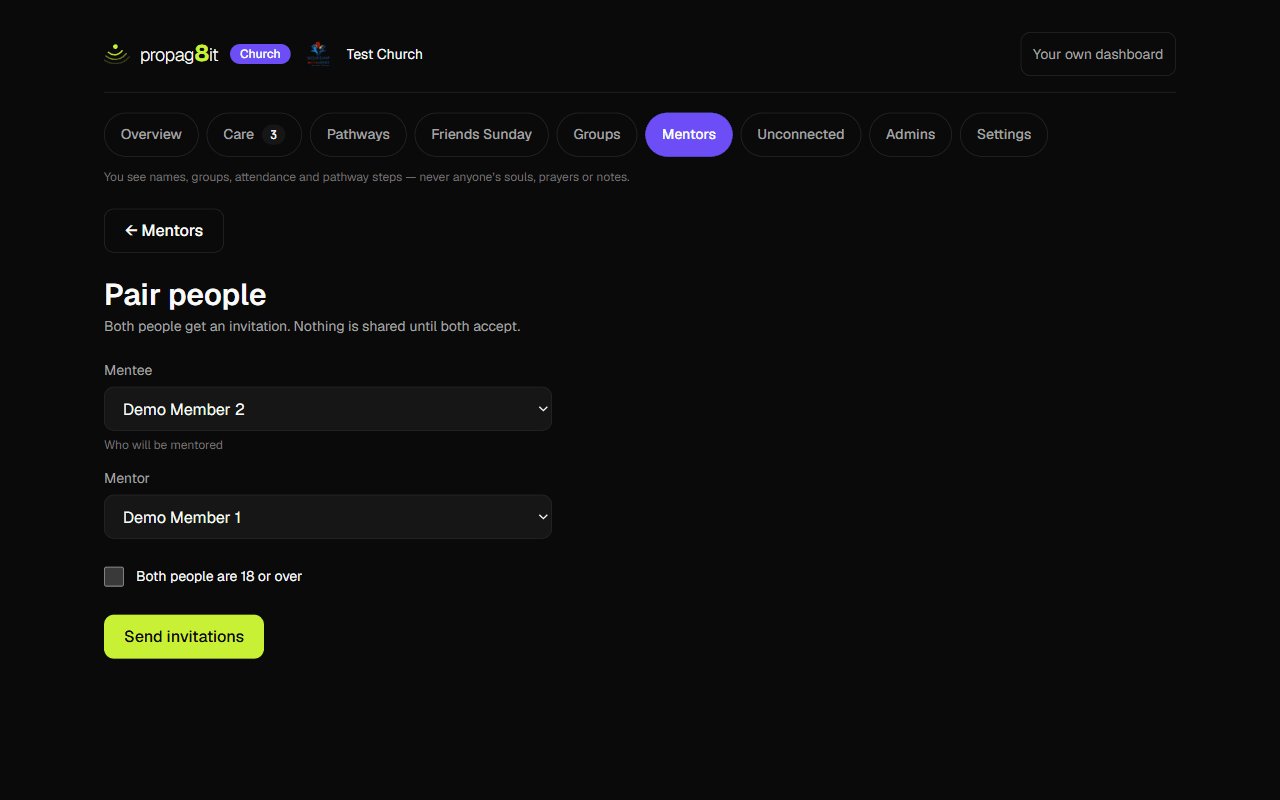
- 1Click Mentors, then Pair people. Both people must be 18 or over, and both must accept before anything is shared.
- 2Pick the Mentee (who will be mentored) and the Mentor from your members. Tick Both people are 18 or over and click Send invitations.
- 3Both people get an invitation. Until they accept, the pair sits under Waiting to accept. You can click Cancel there and confirm. Once both accept, the pair moves to Active.
- 4To end a pairing, click End and confirm. Their meetings together and any check-ins about missed meetings are deleted.
People accept in the app or on the website. See Mentoring invitations. The mentor then records meetings. See Mentor someone.
Add and remove admins
Admins run the groups and see everyone's names, groups and attendance.
On the website
- 1Click Admins. It lists your church's admins.
- 2To add one, go to Make someone an admin, type a name into Search your church and click Make admin. Confirm. They'll see everyone's names, groups and attendance. Only people who have joined your church can be admins.
- 3To take one off, click Remove beside their name and confirm. You can remove yourself. You lose this part of the church space.
- 4Your church needs at least one admin. When only one is left, Remove is off and the page says why.
A new admin can also come in with an admin link. See Accept your admin link.
Change your church's name and logo
What members see on the join page, in Settings and on Friends Sunday.
On the website
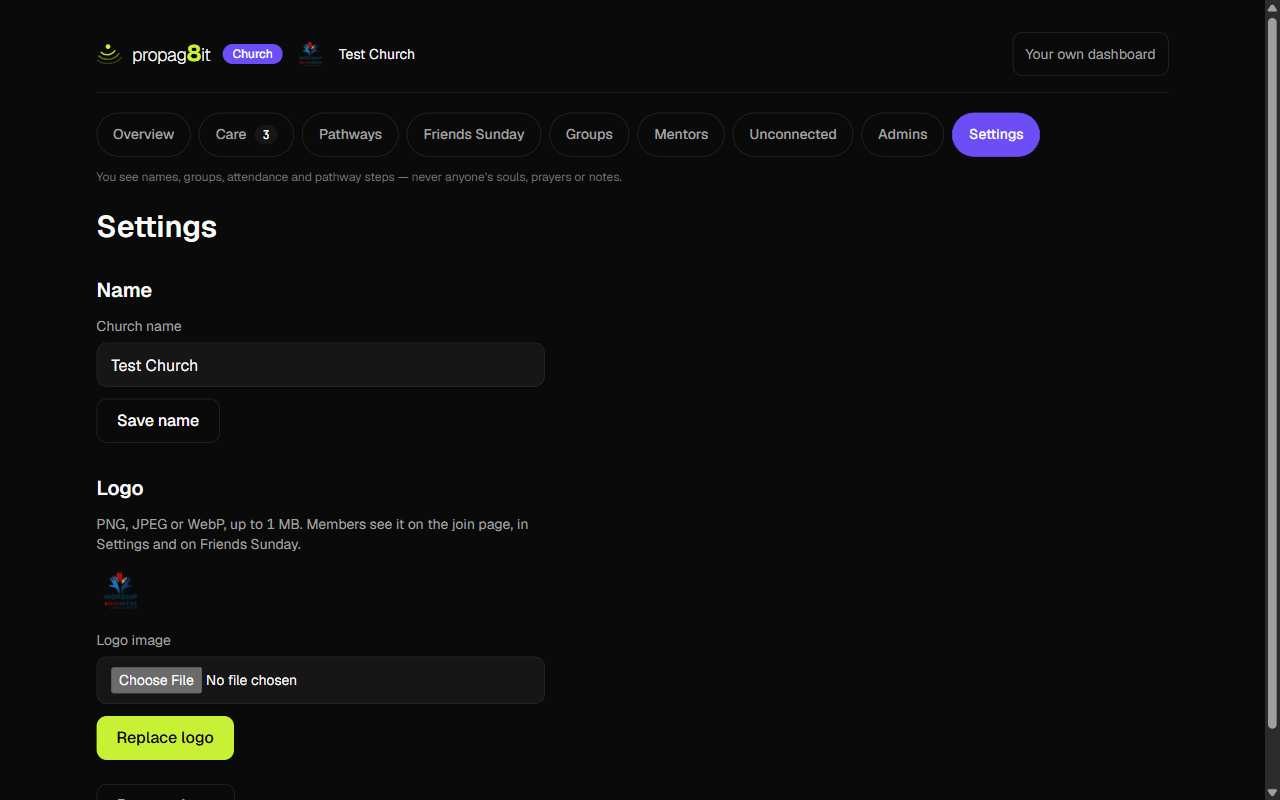
- 1Click Settings in the pills.
- 2Under Name, change the Church name and click Save name. It needs 2 to 80 characters.
- 3Under Logo, click Upload a logo and pick a PNG, JPEG or WebP image up to 1 MB. If you already have one, the button reads Replace logo.
- 4Remove logo takes it off, after you confirm. Members then see your church's initials instead.
Members see the logo on the join page, in their Settings and on Friends Sunday.
What you see, and never see
The promise your church makes to its members, in the app's own words.
- 1On every church page: "You see names, groups, attendance and pathway steps — never anyone’s souls, prayers or notes."
- 2What members are told when they join: "They never see your souls, their names, or anything you’ve written."
- 3On Friends Sunday: you see how many members are taking part and, once five or more have added guests, totals across everyone taking part. Members are told: "Never your guests’ names or your own numbers."
- 4On reaching out: you record that you did and how it went — "never what was said."
- 5On mentoring: "They never see your souls, prayers or notes."
- 6What admins do see: member names, the month each joined, which groups they're in, attendance, pathway steps, and care records. Church-wide soul figures, like how many souls are at each step, show only once 5 members have each added a soul.
- 7Those totals can move by one member's numbers when they join or leave. Members are told this before they join: "When you join, those totals move by your numbers, so someone who compares before and after can work out your own counts."
Members read their side of this before they join. See What your church sees.