Leaders and mentors
If you lead a fellowship or a department, or mentor someone, you get a part of the website for it. Leaders and mentors work on the website. On the phone, one button opens it for you. People who run the whole church have their own guide.
Find your groups
The groups you lead, in one list. Everything below starts here.
On the phone
- 1The phone has no leader screens. Tap the gear at the top right of Home, tap Join or leave a church, then tap Open my groups. It opens the website in your browser. Sign in there if it asks.
- 2Every other task on this page happens on the website.
On the website
- 1In the menu, click My groups. It shows up once you lead a group. A mentor pair counts as a group. Church admins see Church space instead.
- 2You see each group you lead, with its kind and how many members it has. Click Open on one.
- 3The same Open my groups button is in Settings, in the Church section.
Every page of the leader area repeats the promise: "You see names, groups, attendance and pathway steps — never anyone’s souls, prayers or notes." Your own souls are on Your own dashboard.
Record who came
Tick everyone who was there. It takes a minute at the end of a meeting.
On the website
- 1Open your group from My groups. See the first task if you're not sure how.
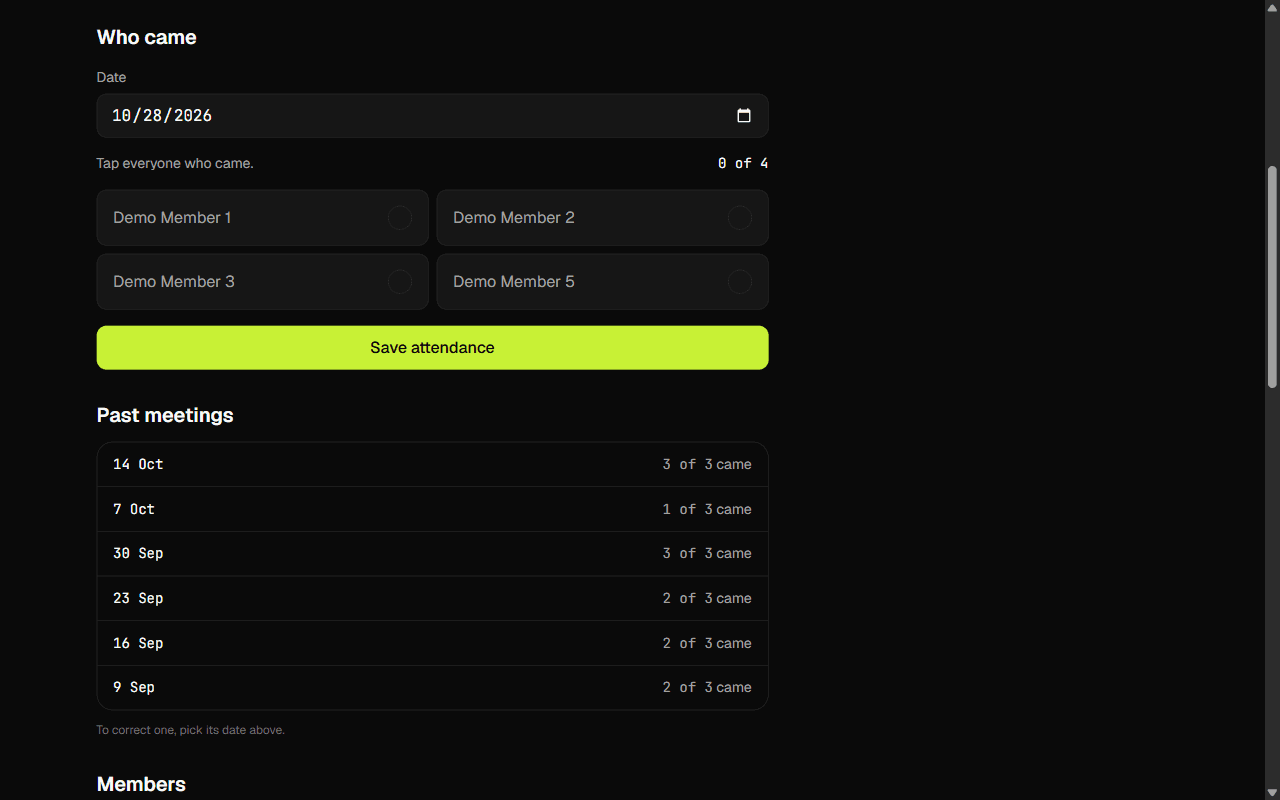
- 2Under Who came, the Date is today. Change it for a meeting you're catching up on. You can pick any day in the last year, up to tomorrow.
- 3Tap everyone who came. Each member is a big button. A tick and a violet edge show who's in, and a count shows how many.
- 4Click Save attendance. The page confirms with how many came.
- 5Got one wrong? Pick that date again. The page says Already recorded. Change the ticks and save to correct it. Change the ticks and save again. Saving a date replaces it.
Earlier meetings are listed under Past meetings. Members who miss several in a row get a badge and show up in Reach out to someone. Members see the same promise at join time: What your church sees.
Add and remove people
Keep the group's list right. Only people who have joined your church can be added.
On the website
- 1Open your group from My groups.
- 2Under Members, use Add members. Type a name into Search your church, then click Add beside the right person.
- 3To take someone out, click Remove beside their name and confirm. You can remove members. Leaders stay on the list until an admin changes that.
- 4Making someone a leader, or a member again, is for your church's admins. They use Make leader and Make member on the same list. Ask yours.
A mentor pair has no member list to edit. Its page is titled "Mentoring" and the person's name. See Mentor someone.
Reach out to someone
Care lists the people in your groups who need a call. You record how it went.
On the website
- 1Click Care in the pills at the top of the leader area. A number beside it shows how many are waiting.
- 2The page says how many people to reach out to, longest waiting first, or No one needs a call right now. Each row has the person's name, how long it's been open, and why: missed meetings of your group, or no step on a pathway in 30 days or more.
- 3Make the call or send the message yourself, outside Propag8it.
- 4Then tap one of three buttons on that row: Reached out, Couldn't reach or Not needed. The row closes and moves to the list of recently closed ones at the bottom of the page.
- 5For someone stalled on a pathway, Open their pathway takes you to their steps.
- 6Some rows close by themselves when the person comes to a meeting, joins a group or takes a step.
You record that you reached out and how it went — never what was said. Members are told this before they join. See What your church sees.
Confirm a pathway milestone
Members tick their own lessons and actions. A milestone waits for a leader.
On the website
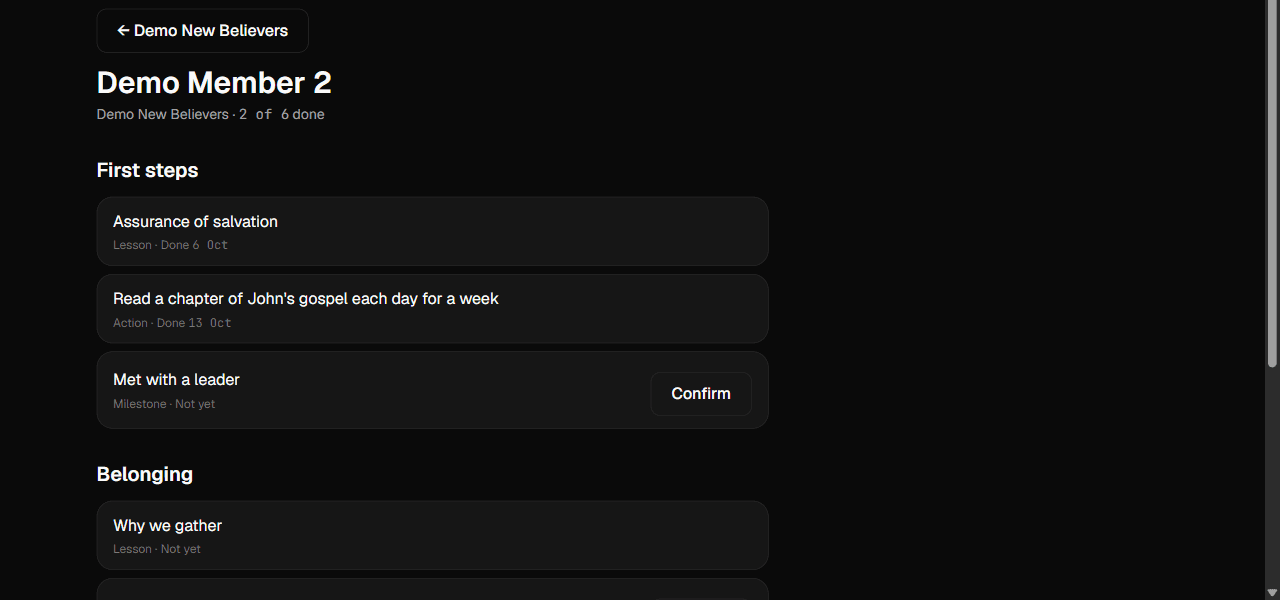
- 1Open your group. Under Pathways, each member who is on a pathway has a row. A chip reading "Waiting on you" and the milestone's name means it's yours to confirm.
- 2Click the row to open that person's steps. Each step is marked as done, confirmed, or not yet.
- 3Click Confirm beside the milestone once it has happened.
- 4Confirmed it by mistake? Click Undo on the same step and confirm.
You can't confirm your own milestones. The page says Someone else confirms your own milestones. Members see it from their side in Pathways.
Mentor someone
Your church pairs you with someone. You both accept, then you record when you meet.
On the phone
- 1Accept the pairing in the app or on the website. See Mentoring invitations.
- 2The phone can't record meetings. Its Mentoring screen tells you: Open the pair on the website to record when you meet.
- 3Tap the gear on Home, then Join or leave a church, then Open my groups.
On the website
- 1Once you both accept, the pair is a group you lead. Click My groups in the menu. With only pairs to open, the page says Open a pair to record when you met.
- 2Click Open on the pair.
- 3Use Who came exactly as for a group. Pick the Date, tap whoever was there, and click Save attendance. See Record who came.
You see what a leader of a group sees: when you came to your meetings together and which pathway steps they've finished. If they go quiet, you're asked to check in under Reach out to someone. You never see their souls, prayers or notes. Either of you can end it any time.
What you see, and never see
The promise your church makes to its members, in the app's own words.
- 1On every page of the leader area: "You see names, groups, attendance and pathway steps — never anyone’s souls, prayers or notes."
- 2On reaching out: members are told you record that you did and how it went — "never what was said."
- 3On mentoring: "They never see your souls, prayers or notes." Members read it before they accept.
- 4You see who is in your groups, who came, and which pathway steps they've finished. Their souls, prayers and notes stay theirs.
- 5Members are also told that any group leader can see their name, the month they joined and how many groups they're in, in the church's member list, so they can add them.
- 6Care shows you the people to reach out to, and why.
Members read their side of this before they join. See What your church sees.
Daily care alert
Phone only. A once-a-day nudge when someone needs a call.
On the phone
- 1Tap the gear on Home and turn on Church alerts. It's off until you do.
- 2If you lead a group or you're an admin, you get one alert a day, and only when there's a new person to reach out to. It reads like "2 people to reach out to." and names your church.
- 3Tapping it opens Care on the website, where you can reach out and record how it went.
An alert names the church. It never names a person. The website has no alerts. See Church alerts.