On your own
Everything here is free for individuals, and you don't need a church to use it. Where the phone and the website differ, each task says so.
Sign up
One account, one email, one password.
On the phone
- 1Open the app. On the sign-in screen, tap Create your account.
- 2Enter your Email and a Password of at least 8 characters.
- 3Tap Create account. We email you a 6-digit code.
- 4Type it in the Code box and tap Verify.
- 5No code? Tap Send a new one. Typed the wrong email? Tap Wrong email, or already signed up? Start over.
On the website
- 1Go to propag8it.com. On the sign-in page, click Create your account.
- 2Enter your Email and a Password: 8+ characters, one uppercase, one number.
- 3Click Create account.
- 4If we ask you to confirm your email, open the link we send, then sign in. Otherwise you go straight to setup.
You need to be 18 or over to use Propag8it. See the Terms.
Sign in and forgot password
Get back in. Reset your password on the website.
- 1Enter your Email and Password, then tap Sign in.
- 2On the website you can also click Email me a sign-in link instead, then Send the link. Open the email and you're in. Click Use a password instead to go back.
- 3Forgot your password? That's on the website only. Click Forgot your password?, enter your email, and click Send the link. The link opens a page where you type a New password and click Set new password.
- 4On the phone? Reset your password on the website at propag8it.com, then sign in on the phone with the new one.
If a link says it has expired, ask for a new one from the sign-in page.
First-time setup
Four quick screens the first time you sign in.
- 1What do we call you? Type your name in Your name, then Continue.
- 2Got a church home? Optional. On the website, pick your church from the list or type it under Not listed? Type it. On the phone, type its name.
- 3How do you love to reach people? Pick up to 5, or skip.
- 4Name your first cycle A cycle is one 1-2-4 journey of 6 souls. Name it, or leave it blank and it's called My first cycle. Then tap Start the ripple.
Picking a church here doesn't join it. Joining uses a join link or code from your church. See the Church members guide.
Home and Dashboard
See how your cycle is going at a glance.
On the phone
- 1Open the Home tab. The big number is your souls won this cycle, like 2 / 6.
- 2Your souls are listed below it, each with the step they're on.
- 3Tap the gear at the top right for Settings.
- 4If you added souls offline, a Syncing note shows until they're saved.
On the website
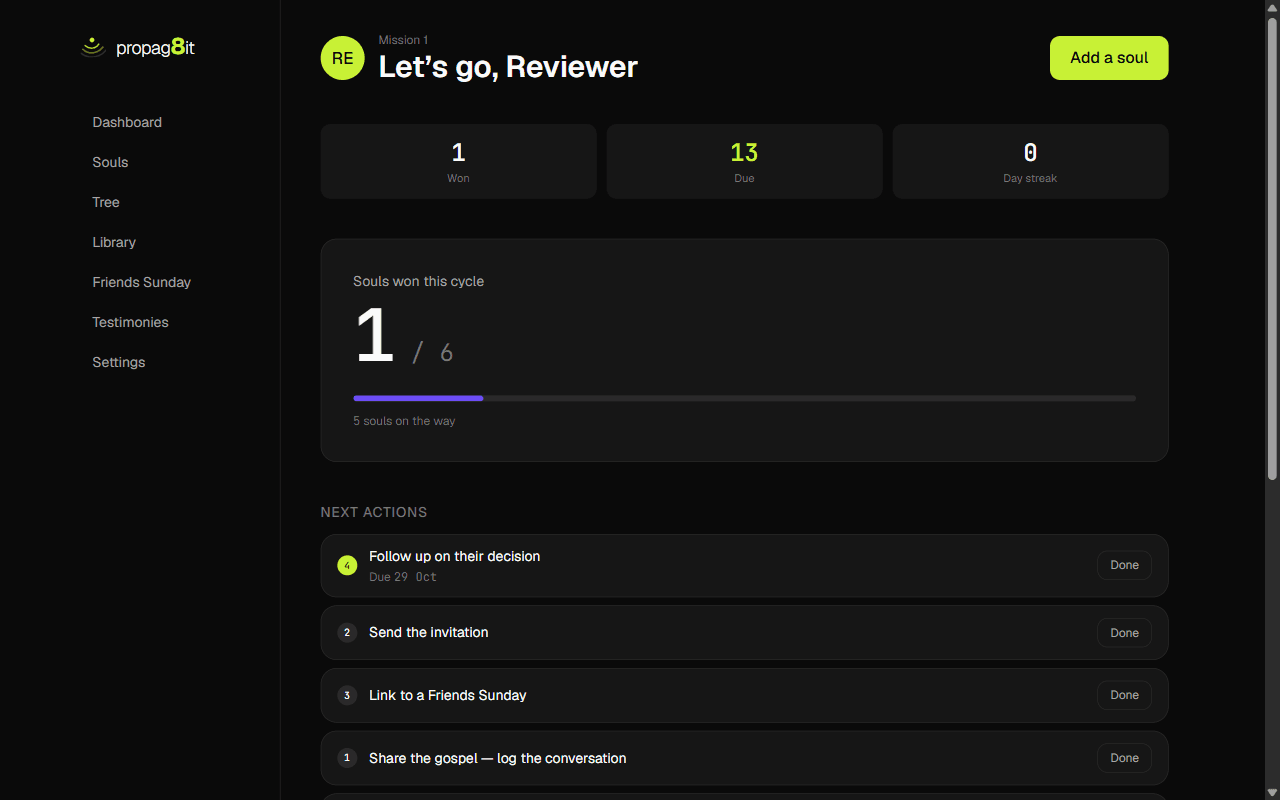
- 1Open Dashboard in the menu. It greets you by first name.
- 2The tiles show Won, Due and Day streak. Souls won this cycle shows how close you are to 6.
- 3Next actions lists follow-ups that are due. Click Done when you've done one.
- 4The Souls section shows your latest five. See all opens the full list.
No cycle yet? On the website, click Start your first cycle. The phone starts one for you.
Add a soul
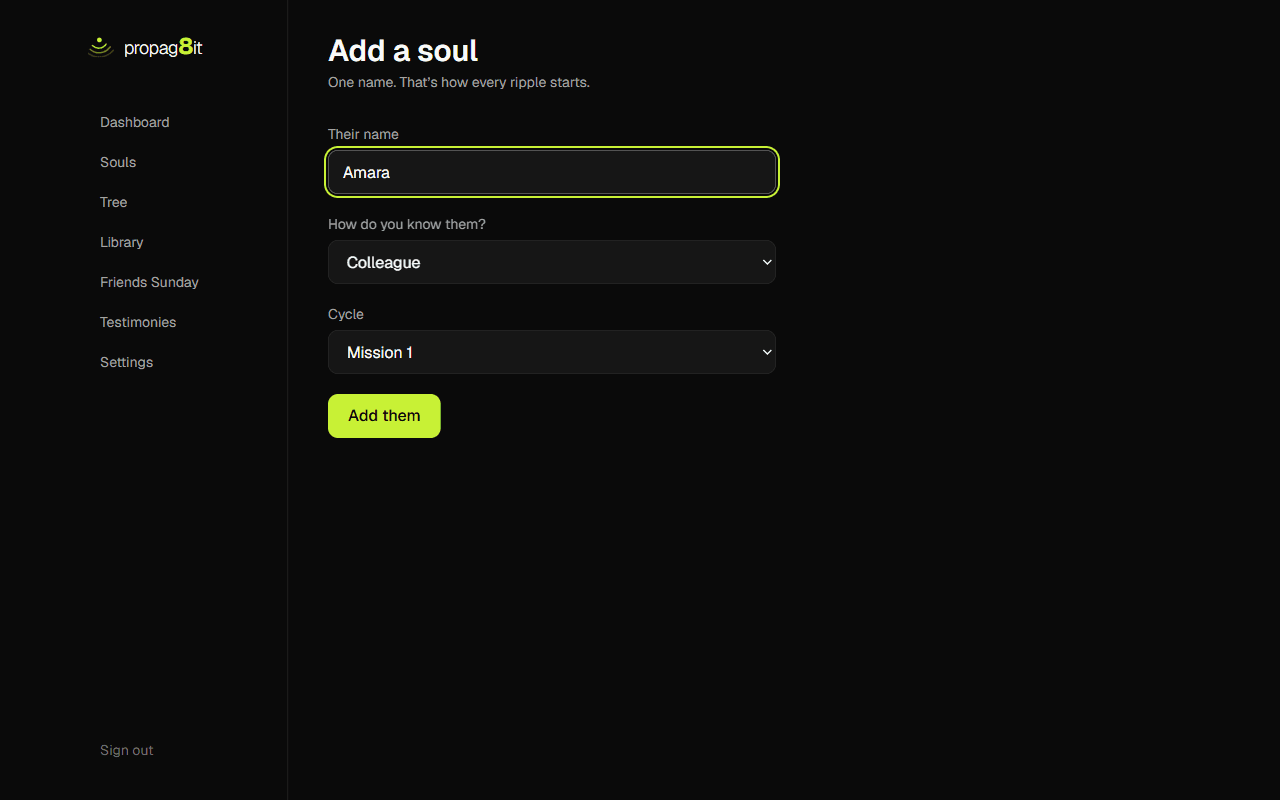
One name is all it takes to start.
- 1Tap Add a soul. On the phone it's at the bottom of Home. On the website it's on the Dashboard and the Souls page.
- 2The first time, read the note that says you're about to record someone real. Tap Got it.
- 3Enter their name. Then say how you know them: friend, family, colleague, neighbour or other. The website asks How do you know them? and lets you pick the Cycle.
- 4Tap Add on the phone, or Add them on the website. They start at step 1.
On the phone, adding a soul works with no signal. It saves when you're back online.
The seven steps
Every soul moves through seven steps, one at a time, forward only.
- 1Share — Log the conversation. The word is out.
- 2Invite — Ask them along. Track the RSVP.
- 3Bring — Link them to a Friends Sunday. Get them in the room.
- 4Follow up — Reach out within 48 hours. This window matters.
- 5Nurture — Check in weekly. Four weeks of watering.
- 6Disciple — Start the 12-week track. Depth before breadth.
- 7Reproduce — They start their own cycle. The ripple continues.
Move a soul forward
How a soul moves from one step to the next, and what counts as won.
- 1Steps only move forward. You can't skip one or go back, so a soul at step 4 can't jump to step 6.
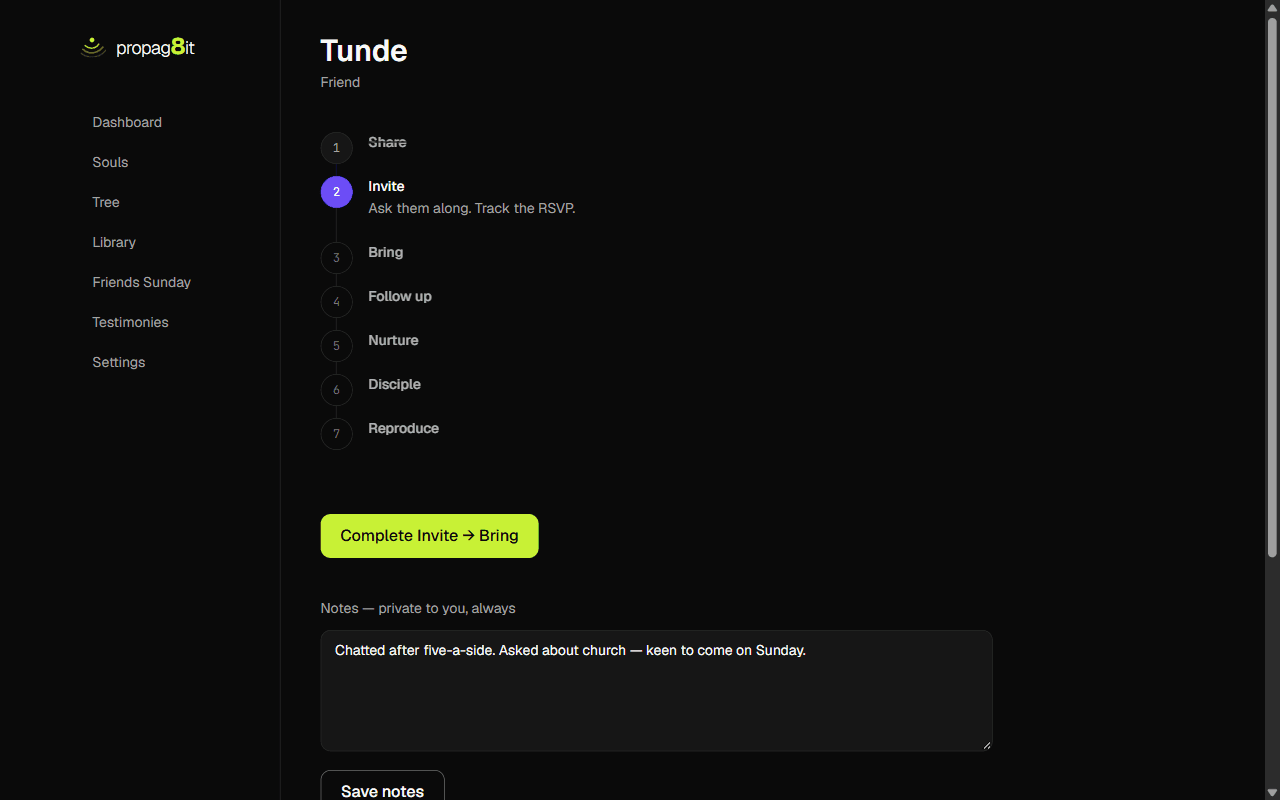
- 2To move a soul on, open their page. On the website, click the one button under the timeline. It reads Complete, then the step they're on and the next one. On the phone, tap Advance.
- 3A soul counts as won when they reach step 4, Follow up. That's what moves your souls won this cycle.
- 4At step 6 the button changes. When they start their own cycle, tap They've started their own cycle on the phone. On the website the button carries their name. That's step 7, and your tree branches.
- 5A soul at step 3 who's linked to a Friends Sunday moves to step 4 by themselves when you mark them Came.
On the phone, moving a soul forward works offline and saves when you're back in signal.
Add notes and invite to join
Keep notes on each soul. Invite a soul you've won to join you.
- 1Open a soul and write in Notes: prayer points, what you talked about, what to bring up next.
- 2Tap Save notes.
- 3Once a soul is won, you can tap Invite to join. The app makes a link for you to send them.
- 4They sign up, then open the link again to join your tree. You see how many souls they win, never who.
Your notes are private to you, always.
Delete a soul
Remove someone's record for good.
- 1Open the soul and scroll to the bottom of their page. The panel is headed Delete and their name.
- 2Read the note. It deletes their record, your notes about them and any follow-ups. People they won stay in your tree. It can't be undone.
- 3Under Type their name to confirm, type their name, then tap Delete.
Cycles
A cycle is one 1-2-4 journey of 6 souls. Starting one is on the website.
On the website
- 1On the Dashboard, click Start your first cycle. You also land here if you add a soul with no active cycle.
- 2Type a Cycle name, then click Start the cycle.
The phone has no cycles screen. It starts one for you if you don't have one.
Your soul tree
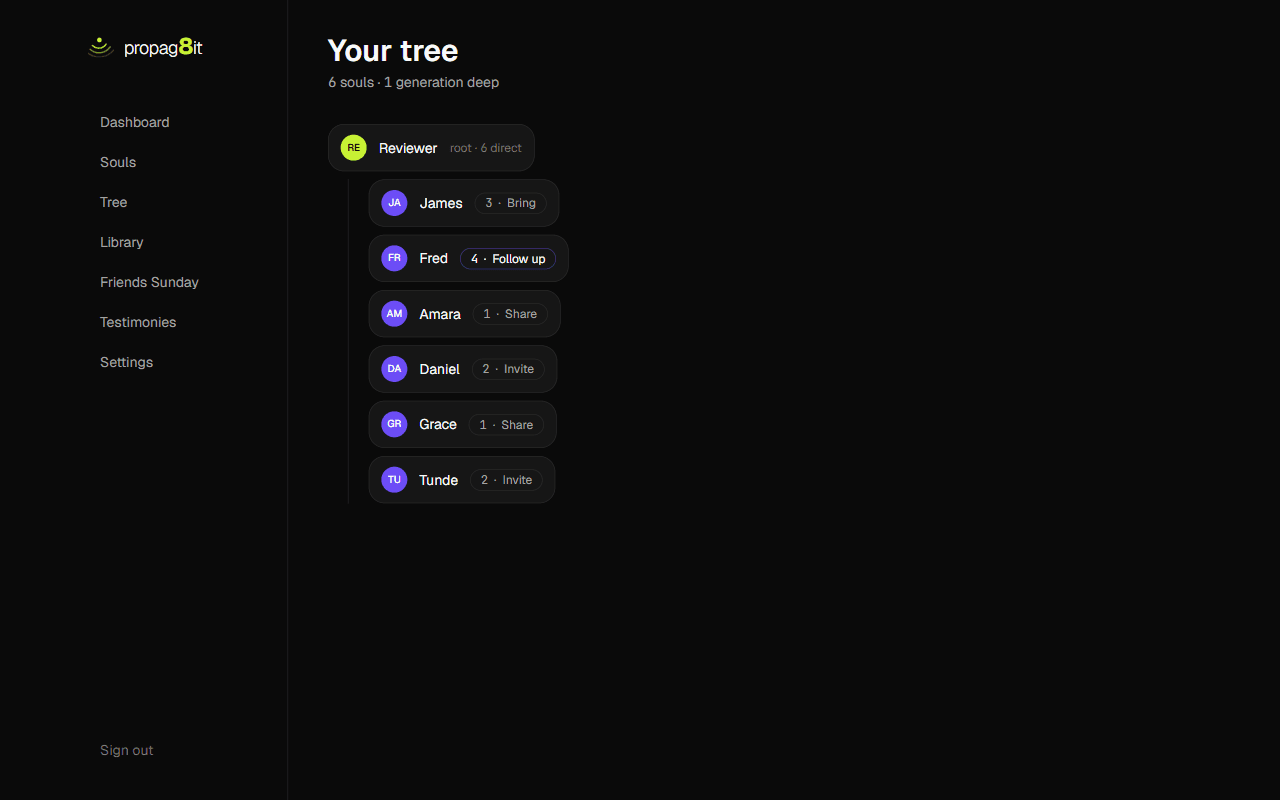
See who won whom, as branches.
- 1Open Tree. On the website it's in the menu. On the phone it's a tab.
- 2It shows how many souls you have and how many generations deep the tree goes.
- 3Tap or click a person to open their page.
- 4The tree starts with one branch. It branches when a soul reaches step 7 and wins their own.
On the phone, your tree works offline from the copy on your phone.
Library
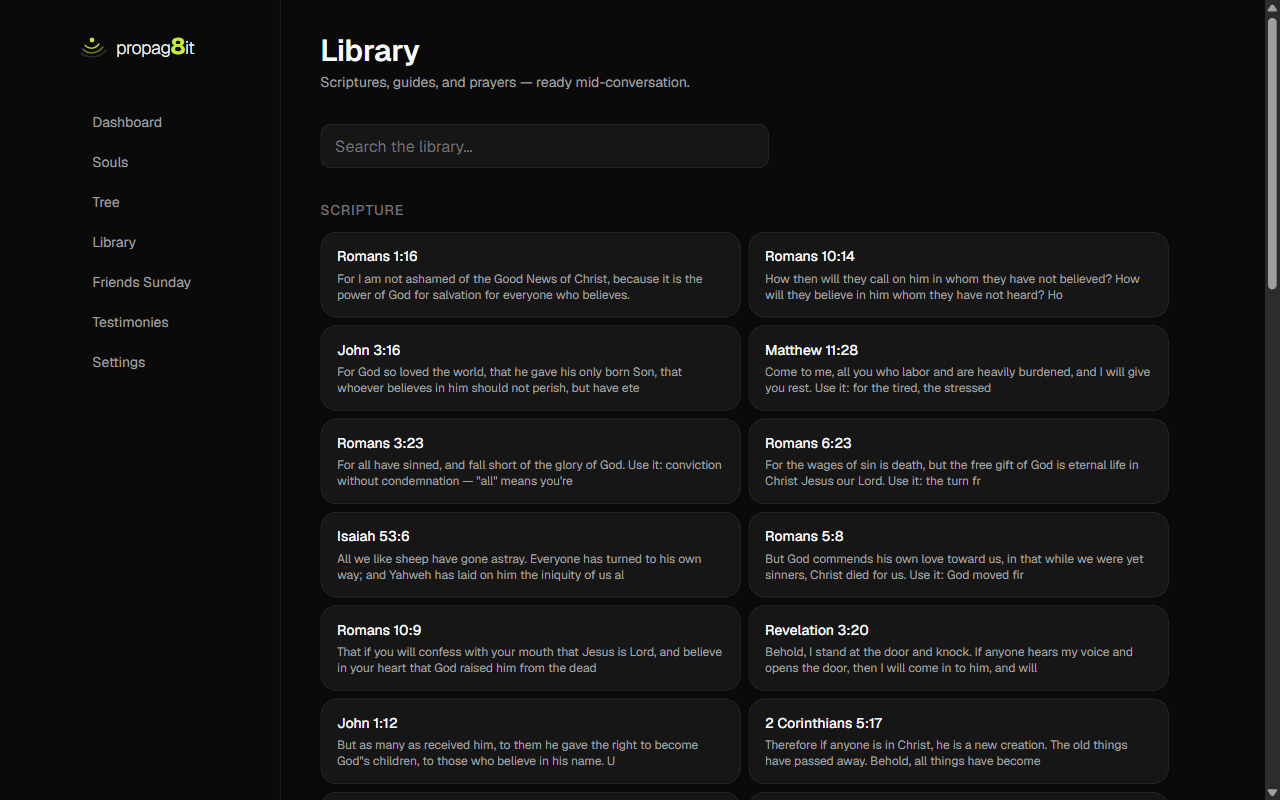
Scriptures, guides and prayers, ready mid-conversation.
- 1Open Library.
- 2Use the search box, or browse the sections, like Scripture and Prayers.
- 3Open an item to read it. Tap Save to keep it under Saved.
On the phone, the whole library downloads after your first time online, then works with no signal. On the website, pages you've already opened still open offline.
Testimonies
Share what God is doing. A person reads every one before it goes up.
- 1Open Testimonies. On the phone it's the Wall tab.
- 2Tap Share a testimony, write what God did, then tap Share it.
- 3Your name goes up with it, so don't share someone else's name or details without their permission.
- 4Check on yours under Your testimonies. It shows Waiting for review, then On the wall. A post that isn't approved shows Not published.
On the phone, testimonies need signal. Your draft is saved if you're offline.
Your own Friends Sunday
Plan a day to bring your guests, and track who comes.
- 1Open Friends Sunday. On the phone it's the Sunday tab. Tap Plan a Friends Sunday.
- 2Fill in the event name and the date, then tap Create the event. The phone asks for the date as YYYY-MM-DD.
- 3Share the invitation, then add guests. Link a soul you're reaching, or type a name, and tap Add a guest (Add guest on the phone).
- 4As people reply, set them to Invited or Coming. The website's third choice is Can't make it. The phone's is Declined.
- 5After the day, mark each guest Came or Didn't come, then Close this event.
On the phone, Friends Sunday needs signal.
Settings
Your profile, your data, your account.
On the phone
- 1Tap the gear at the top right of Home.
- 2Change your Display name or Bio, then tap Save changes.
- 3Turn on Remind me about follow-ups for a nudge when a follow-up is due. Reminders are phone only.
- 4Download your data opens the website, where you finish the download. Delete your account is below it.
On the website
- 1Open Settings in the menu.
- 2Change your Display name or Bio, then click Save changes.
- 3Click Download your data to save everything you've tracked in one file.
- 4To close your account, use Delete your account. It erases your souls, your tree and your testimonies, and can't be undone. You type your email to confirm.
Your email is shown in Settings but can't be changed there.
Working offline
The tracker keeps working with no signal.
- 1On the phone, you can add a soul, move one forward, write notes, delete a soul, read your tree and read the library with no signal.
- 2Changes you make offline show Syncing and save when you're back.
- 3These need signal: finishing setup, editing your profile, invites, testimonies, Friends Sunday and joining or leaving a church.
- 4On the website, only library pages you've already opened work offline. The tracker needs signal.